Free CAD software for Chromebook
Which CAD works on a Chromebook? Compare browser options like Trevolyx and Onshape, see what a Chromebook can handle, and learn how to set it up.
Open TrevolyxFree, desktop browser, nothing uploaded.
Why Chromebooks are tricky for CAD
Most mechanical CAD programs are Windows desktop applications, and ChromeOS cannot run them. SolidWorks, Inventor, Solid Edge and CATIA desktop all need Windows. That leaves browser based CAD, or Linux apps if your Chromebook supports the Linux development environment.
Browser CAD is the simplest path, because Chrome is already the main app on a Chromebook.
Trevolyx on a Chromebook
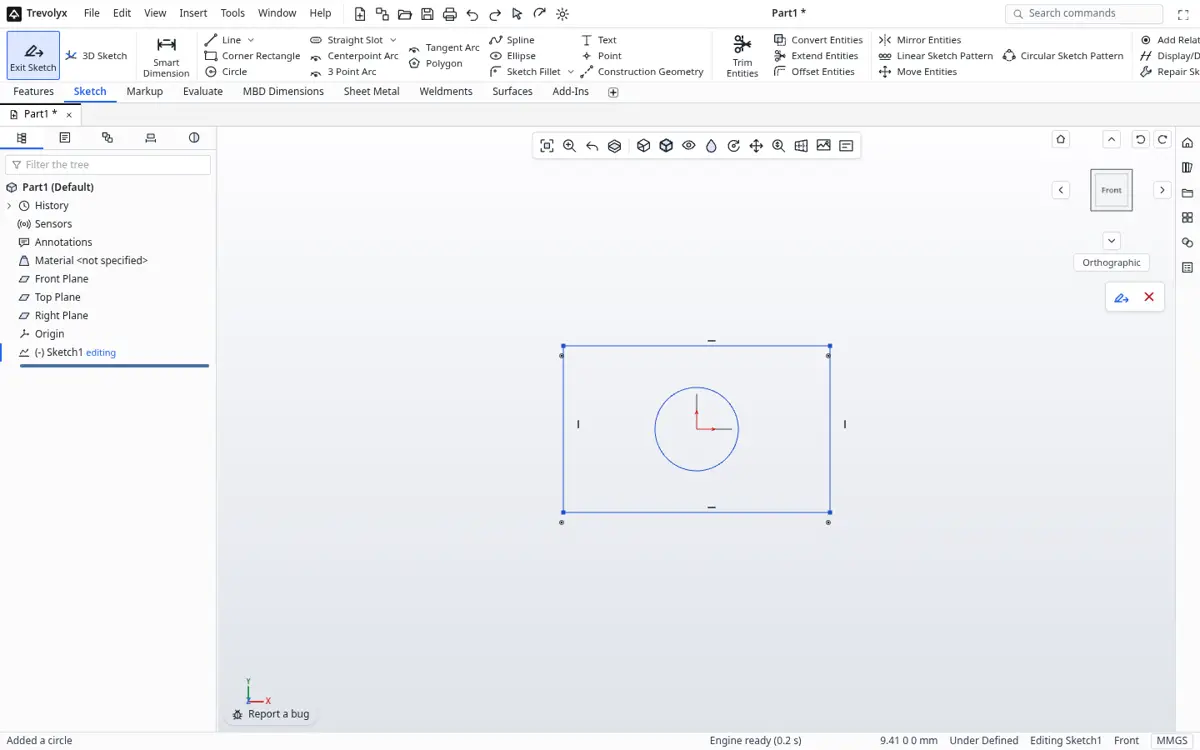
Trevolyx is a free parametric 3D CAD that runs in Chrome or Edge on a desktop or laptop. It has sketches with dimensions and relations, extrude, revolve, fillet, chamfer, shell and patterns, sheet metal with flat pattern DXF export, weldments with a cut list, assemblies with mates and exploded views, and 2D drawings with standard, section and detail views that save as DXF and PDF. It opens STEP and IGES and exports STEP, plus STL and 3MF for printing. There is no account, and your files stay on your computer because the geometry engine runs inside the browser.
On a Chromebook you open trevolyx.taskninja.ai in Chrome. Nothing is installed and no account is needed.
Our honest basis
Trevolyx is built and tested in desktop Chrome and Edge. ChromeOS uses the same Chrome browser engine, WebGL2 and WebAssembly, but we have not yet run a full test pass on a physical Chromebook. Many low cost Chromebooks have limited memory and weak graphics, so performance varies. Run the Check my computer button on the system requirements page before you rely on it: it reports WebGL2, WebAssembly, memory and processor threads, and flags software rendering.
Chromebook CAD options
| Trevolyx | Onshape Free | FreeCAD (Linux on ChromeOS) | |
|---|---|---|---|
| Runs in Chrome | Yes | Yes | No, Linux app |
| Account | None | Required | None |
| Private documents | Yes, files on your device | Free documents are public, per Onshape | Yes |
| Commercial use | Allowed | Not on Free plan | Allowed |
| Simulation | No | Not on Free plan | FEM workbench |
| Works offline | Not reliably | No | Yes |
Onshape on a Chromebook
Onshape says its CAD runs in a browser on Mac, PC, Chromebook and Linux, with nothing to install, and its help pages list Chrome among the supported browsers and require WebGL. It is a mature product with strong collaboration. On the Free plan, documents are public, so it suits open projects and learning rather than private or commercial parts.
FreeCAD through Linux on ChromeOS
Many Chromebooks can turn on a Linux development environment. FreeCAD publishes Linux AppImage builds for x86_64 and aarch64, so on a supported Chromebook you can download and run it there. Graphics performance inside the Linux container depends on the device, and setup takes a few steps, so it is best for users comfortable with Linux.
Which Chromebook is enough
For browser CAD, memory matters most. A Chromebook with 4 GB can open small parts, while 8 GB is more comfortable, especially with other tabs open. In our Chromium measurements a working Trevolyx session uses around 400 MB for the tab and GPU together. Integrated graphics are fine. A mouse with a scroll wheel makes sketching far easier than the touchpad; touch screens are not the intended input.
Trevolyx v1 does not have simulation (FEA), 3D Sketch, Markup or model based definition (MBD). If your work depends on any of those, keep access to a tool that has them.
Getting started on a Chromebook
- Update ChromeOS so you have a current Chrome.
- Open the system requirements page and press Check my computer. Fix any warnings, such as hardware acceleration being off.
- Plug in a mouse, then open trevolyx.taskninja.ai.
- Click New Part, pick the Front plane, sketch and extrude.
- Save with Ctrl+S. The file downloads to your Downloads folder or Google Drive.
Making the most of a small screen
Many Chromebooks have 11 to 14 inch screens. CAD needs room for the ribbon, the tree and the viewport. Use the browser in full screen mode, collapse the tree when you are not using it, and zoom the page out slightly with Ctrl and minus if the ribbon wraps. An external monitor makes a big difference if your Chromebook supports one. Trevolyx needs a screen at least 1366 pixels wide for a comfortable layout.
Saving and sharing work
When you save in Trevolyx the file downloads like any other file. On a Chromebook it goes to the Downloads folder, and you can move it to Google Drive from the Files app. To share with someone using SolidWorks, Inventor or Fusion, export STEP. For a teacher or a laser cutter, export a drawing as PDF or a flat pattern as DXF.
When a Chromebook is not enough
Large assemblies with hundreds of parts, very detailed fillets on imported models and complex drawings need more memory and graphics power than most Chromebooks have. If you see the tab reload or the viewport stutter, close other tabs first, then consider a laptop with more memory. Simulation is not available in Trevolyx on any device.
For classwork, small parts and sheet metal projects, a Chromebook with 8 GB and a mouse is a practical CAD machine.
Troubleshooting on ChromeOS
A black or blank viewport usually means WebGL is unavailable. Open chrome://gpu and look for WebGL2 marked as hardware accelerated. Restart the Chromebook after a ChromeOS update. If your school manages the device, the administrator may have disabled hardware acceleration or blocked sites, and only they can change that.
Teaching with Trevolyx on Chromebooks
Teachers can plan a short unit around one object, such as a phone stand. Lesson one covers sketches, dimensions and extrude. Lesson two adds fillets, holes and a shell. Lesson three turns it into a drawing with three views and a title. Lesson four exports STEP or STL for printing, or DXF for a laser cutter. Because nothing is installed, the same plan works on any Chromebook cart, and students save files to their own Drive.
Ask your administrator to allow trevolyx.taskninja.ai and to leave hardware acceleration on in the device policy.
What students can make
Typical Chromebook projects include phone stands, name plates, gears, simple enclosures and laser cut boxes. Each uses sketches, dimensions, extrudes and fillets, and some use sheet metal for folded parts. Trevolyx runs mass properties and measurement too, which helps in physics and design and technology lessons where students need to estimate weight or check fit.
Projects can be printed via STL or 3MF, cut via DXF, or shared with a teacher as a PDF drawing.
Older Chromebooks with 4 GB of memory can open simple parts, but 8 GB gives a smoother experience with assemblies. Close other tabs while modelling for the best result.
School and classroom use
Because nothing is installed and no account is created, Trevolyx works on managed school Chromebooks where students cannot install software, as long as the site is allowed by the school. Students can export STEP for 3D printing workflows or DXF for laser cutters.
Frequently asked questions
Can you run SolidWorks on a Chromebook?
Not natively. SolidWorks desktop needs Windows. Browser CAD such as Trevolyx or Onshape is the practical option.
Is Trevolyx tested on Chromebooks?
It is tested in desktop Chrome, which shares its engine with ChromeOS, but not yet on a physical Chromebook. Use the Check my computer button.
How much RAM does a Chromebook need for CAD?
4 GB can open small parts; 8 GB is more comfortable. Large assemblies need more.
Can I 3D print from a Chromebook?
Yes. Export STEP from Trevolyx and send it to your slicer or print service.
Do I need an account?
No.
Related
Sources
Competitor details checked on their official pages on 5 November 2026. Plans change; please confirm there.
SolidWorks, CATIA and 3DEXPERIENCE are trademarks of Dassault Systemes. Inventor, AutoCAD and Fusion are trademarks of Autodesk. Onshape is a trademark of PTC. Solid Edge is a trademark of Siemens. FreeCAD is a project of its community. Trevolyx is not affiliated with or endorsed by any of them; names are used only to describe compatibility and comparisons.