Open STEP files online, free, and edit them too
Open .step and .stp files in your browser as exact solids. Measure, check mass properties, add features and export STEP or STL. No upload, no account.
Open TrevolyxFree, desktop browser, nothing uploaded.
What a STEP file is
STEP (ISO 10303, file extension .step or .stp) is the most common neutral format for 3D CAD. Suppliers publish their bearings, motors and fasteners as STEP files, and engineers send each other STEP when they use different CAD programs. Unlike STL, a STEP file keeps exact geometry: true cylinders, planes and curved surfaces instead of triangles. That is why it is the right format for manufacturing and for further modelling.
The problem is that you normally need a full CAD program to open one. Trevolyx opens STEP in a browser tab, with the same exact kernel used for modelling.
How to open a STEP file in Trevolyx
- Open trevolyx.taskninja.ai on a desktop browser.
- Click Open on the start screen (or press Ctrl+O) and choose your .step or .stp file. You can also try the Pillow block sample first.
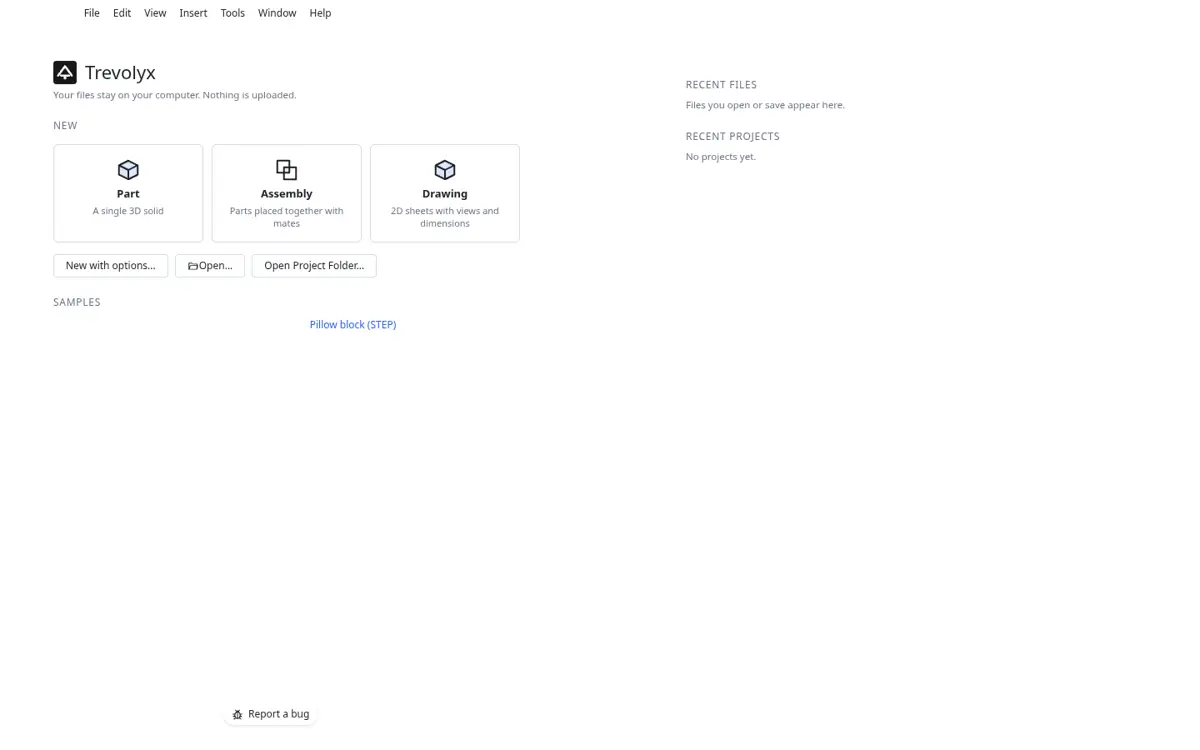
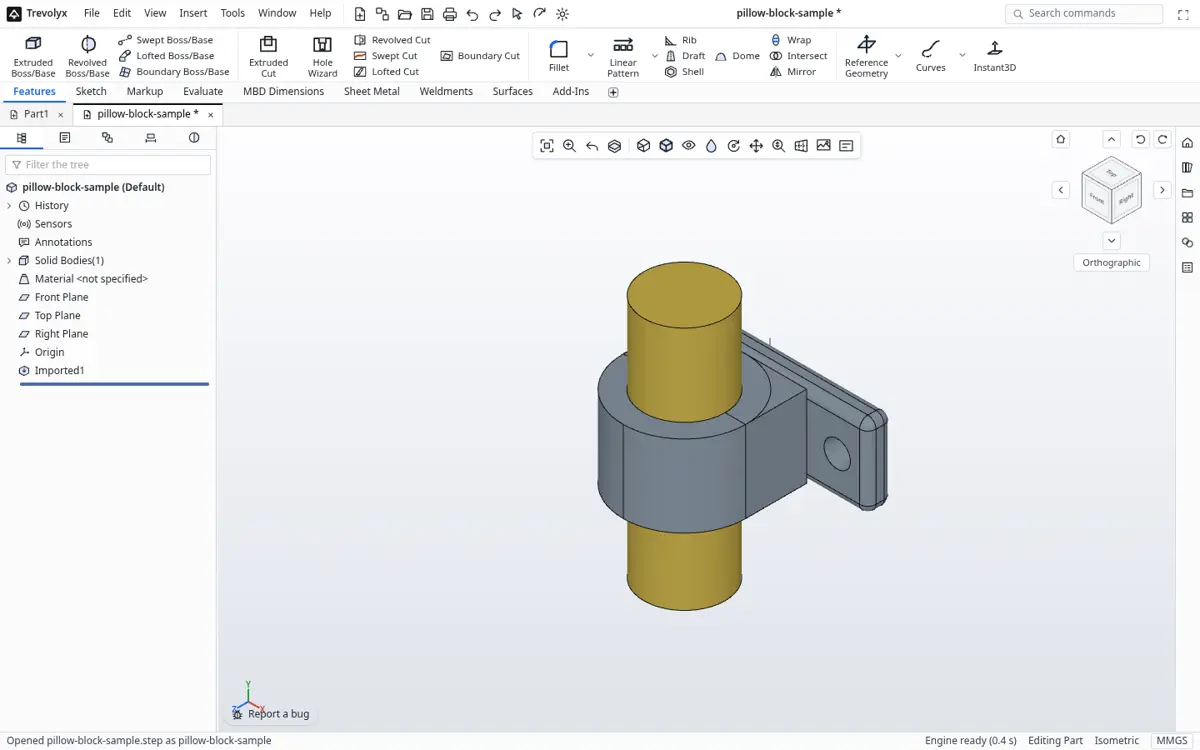
The Open button on the Trevolyx start screen - The model loads as a solid body. Rotate with the middle mouse button, zoom with the wheel and use the heads-up view toolbar for standard views and section views.
STEP model loaded and shaded - Open the Evaluate tab to Measure distances, angles and radii, or click Mass Properties for volume, surface area and bounding size.
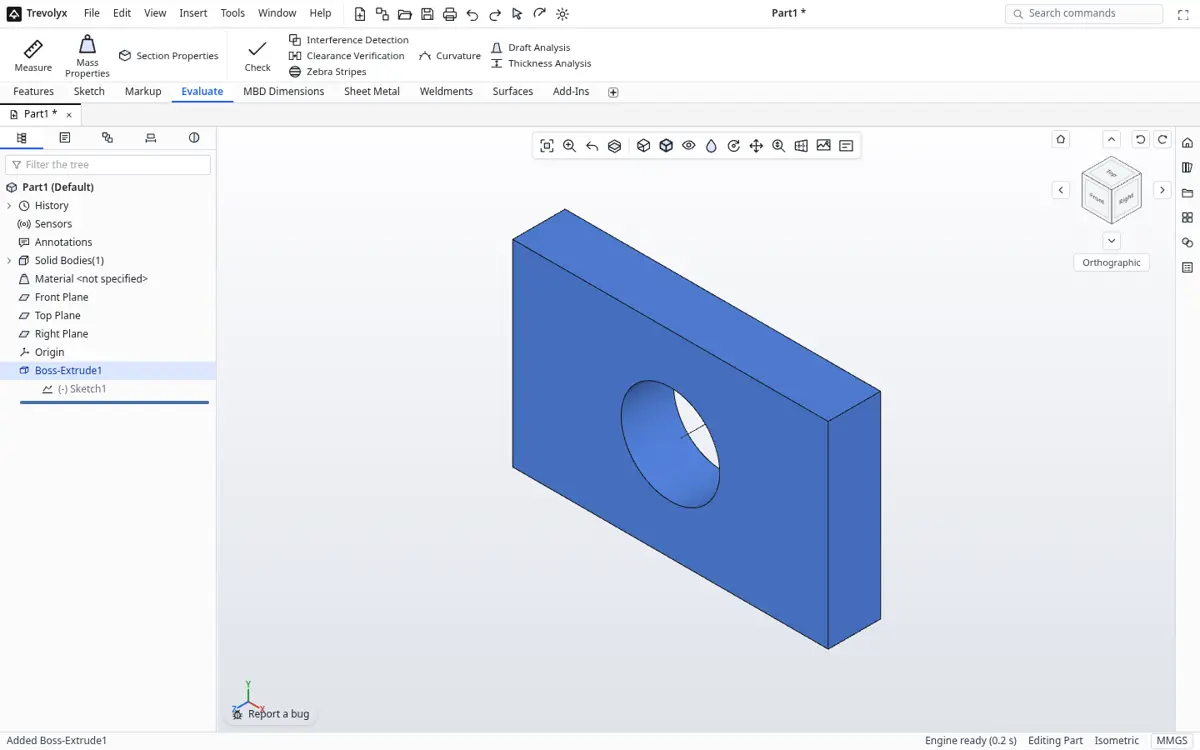
Evaluate tab with Measure and Mass Properties - To change it, sketch on any flat face and add an extrude, cut or hole. Then export the result as STEP, STL, OBJ, 3MF or GLB.
Just viewing? Use the lighter viewer
If you only need a quick look or want to check a file on a phone, the TaskNinja STEP viewer is lighter and works on mobile. Trevolyx is the right choice when you want to measure precisely, edit the model or use it in an assembly.
STEP viewer vs Trevolyx
| Task | STEP viewer | Trevolyx |
|---|---|---|
| View and rotate a STEP model | Yes | Yes |
| Works on phones | Yes | No, desktop only |
| Measure edges and faces | Basic | Full Measure tool |
| Mass properties | No | Yes |
| Add features to the model | No | Yes |
| Use in an assembly or drawing | No | Yes |
| Export STEP or STL | STL via the STEP to STL tool | Yes |
Tips for large or tricky STEP files
Large assemblies saved as a single STEP file can take a while to load on an older laptop because every face is rebuilt exactly. Close other heavy tabs first. If a file came from a mesh (some online model libraries convert STL to STEP), it will contain thousands of tiny triangle faces and behave slowly; ask for a native STEP from the original CAD instead. IGES files (.igs, .iges) open the same way.
STEP versus STL: what the difference means for you
A STEP file stores exact geometry: true cylinders, planes, cones and spline surfaces with precise edges. An STL file stores only a mesh of small triangles that approximates the shape. That difference decides what you can do. With STEP you can measure a hole diameter exactly, pick a flat face to sketch on, add a fillet or cut a pocket. With STL you can look, print and roughly measure, but not edit cleanly.
So when a supplier asks which format to send, ask for STEP (AP214 or AP242). When a 3D printer asks for a file, convert the STEP to STL or 3MF. Trevolyx does both in the browser, and the TaskNinja STEP to STL converter does the conversion alone if you do not need the full CAD.
Common problems when opening STEP files
Large assemblies from big vendors can contain hundreds of parts and take a while to load. Give the tab a minute and avoid switching away while it imports. If a file opens as many loose bodies rather than one part, that is how it was exported; you can still measure and section it. If a file fails to open, check that it really is STEP text (it starts with ISO-10303-21) and not a renamed native file from another program.
Native files such as .sldprt, .ipt, .prt or .catpart are closed formats and cannot be opened directly. Ask the sender to export STEP from their program; every major CAD can do it in a few clicks.
What to do after opening
Use Measure on the Evaluate tab to check hole sizes, centre distances and wall thickness. Use Mass Properties with a material to estimate weight before quoting. Use a section view to look inside castings and housings. If you need to modify the part, sketch on any planar face and add Extruded Cut or Extruded Boss/Base features on top of the imported body, then export a new STEP to send back.
Frequently asked questions
Is my STEP file uploaded?
No. It is read directly from your disk into the browser tab and never leaves your computer.
What is the difference between .step and .stp?
None. They are two extensions for the same ISO 10303 format.
Can I convert STEP to STL?
Yes. Open the STEP file and use File, Export and choose STL. There is also a dedicated STEP to STL tool on TaskNinja.
Can I open SolidWorks or Inventor files?
Not natively. Export STEP from the original program first.
Does it open IGES?
Yes, .iges and .igs files open as solids or surfaces.